Set up SCIM with Okta EnterpriseEnterprise +
System for Cross-Domain Identity Management (SCIM) license mapping is currently only supported for Okta. For other providers, license types must be managed within the dbt platform user interface.
Prerequisites
- Available on Enterprise or Enterprise+ plans.
- You must use Okta as your single sign-on (SSO) provider and have it connected in the dbt platform.
- You must have permissions to configure the account settings in dbt platform.
- Complete setup SSO with Okta before configuring SCIM settings.
- Complete the Set up SCIM to get your SCIM base URL and token.
Set up Okta
-
Log in to your Okta account and select Applications from the sidebar. Open the application you configured for SSO.
-
Click on the app and navigate to the General tab.
-
In App Settings, click Edit and make sure you check the SCIM checkbox on the Provisioning row to enable SCIM provisioning.
-
Click Save and the Provisioning tab will now be visible.
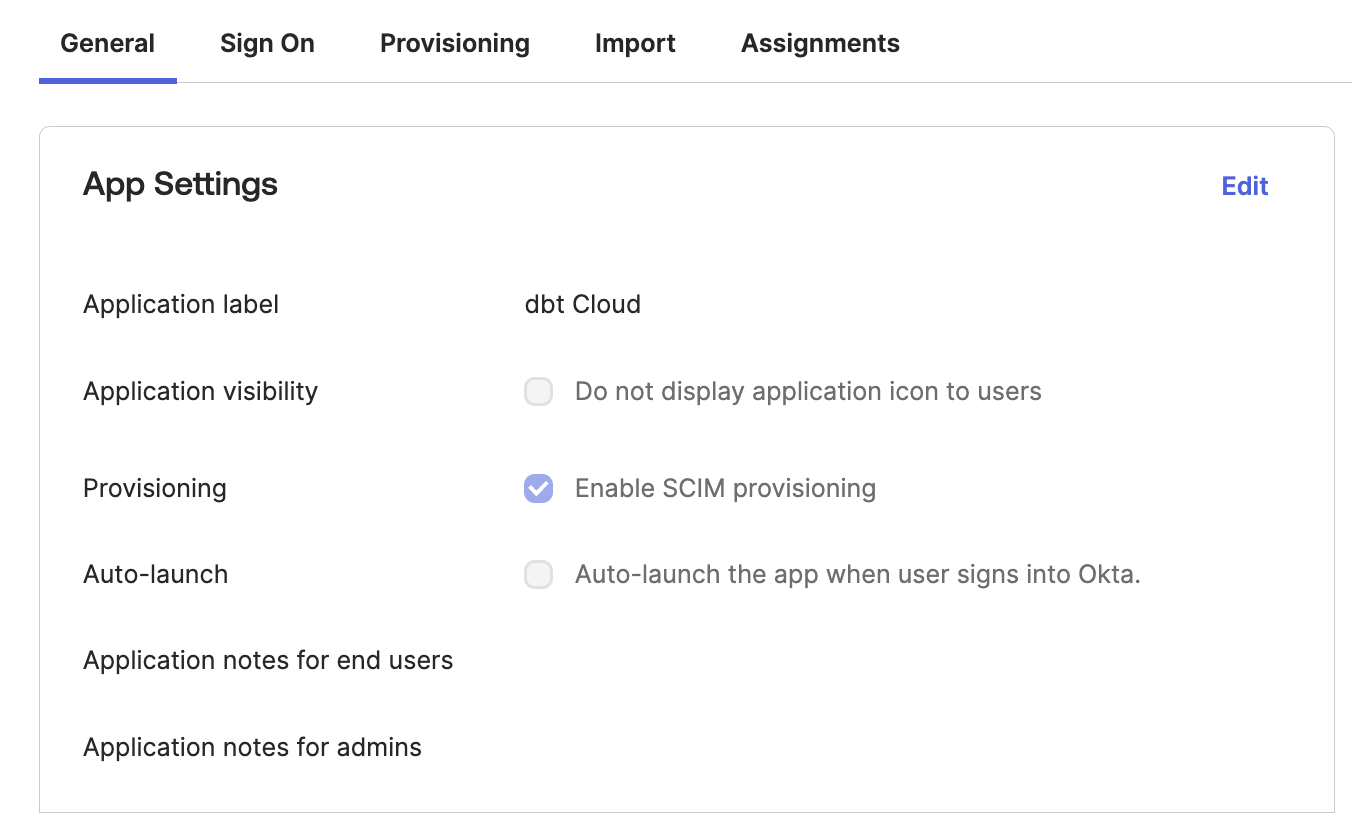 Enable SCIM provisioning in Okta.
 -
Open the Provisioning tab and select Integration.
-
Click Edit and enter the SCIM base URL from Set up SCIM in the first field. For Unique identifier field for users, we recommend
userName. -
Under Supported provisioning actions, select:
- Push New Users
- Push Profile Updates
- Push Groups
- Import New Users and Profile Updates (Optional for users created before SSO/SCIM setup)
- Import Groups (Optional)
-
For Authentication mode dropdown, select HTTP Header.
-
In the Authorization section, enter the token from dbt into the Bearer field.
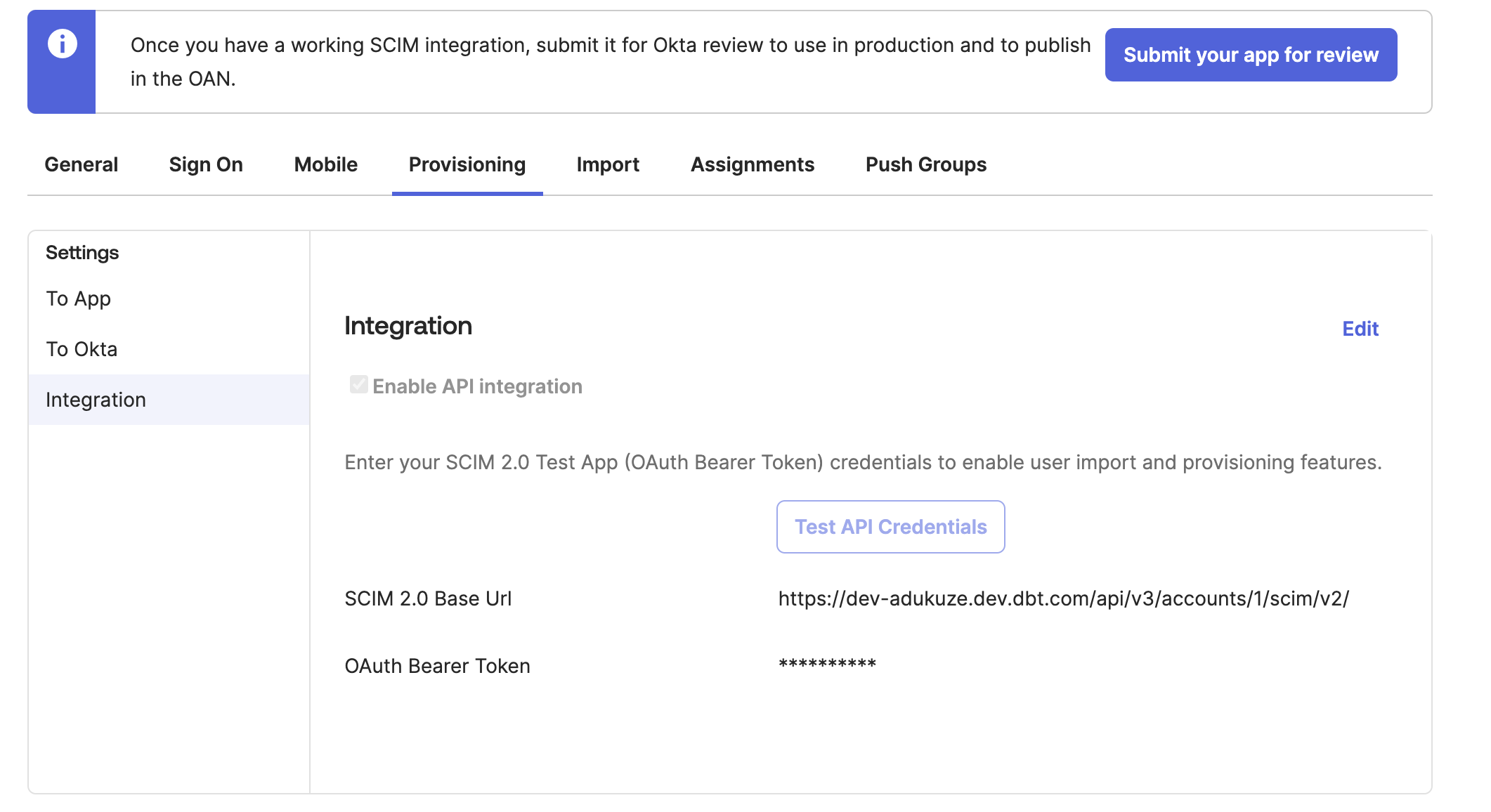 The completed SCIM configuration in the Okta app.
 -
Click Save to test the connection and you will be taken to the Provisioning tab.
-
Click Edit and ensure the following provisioning actions are selected:
- Create Users
- Update User Attributes
- Deactivate Users
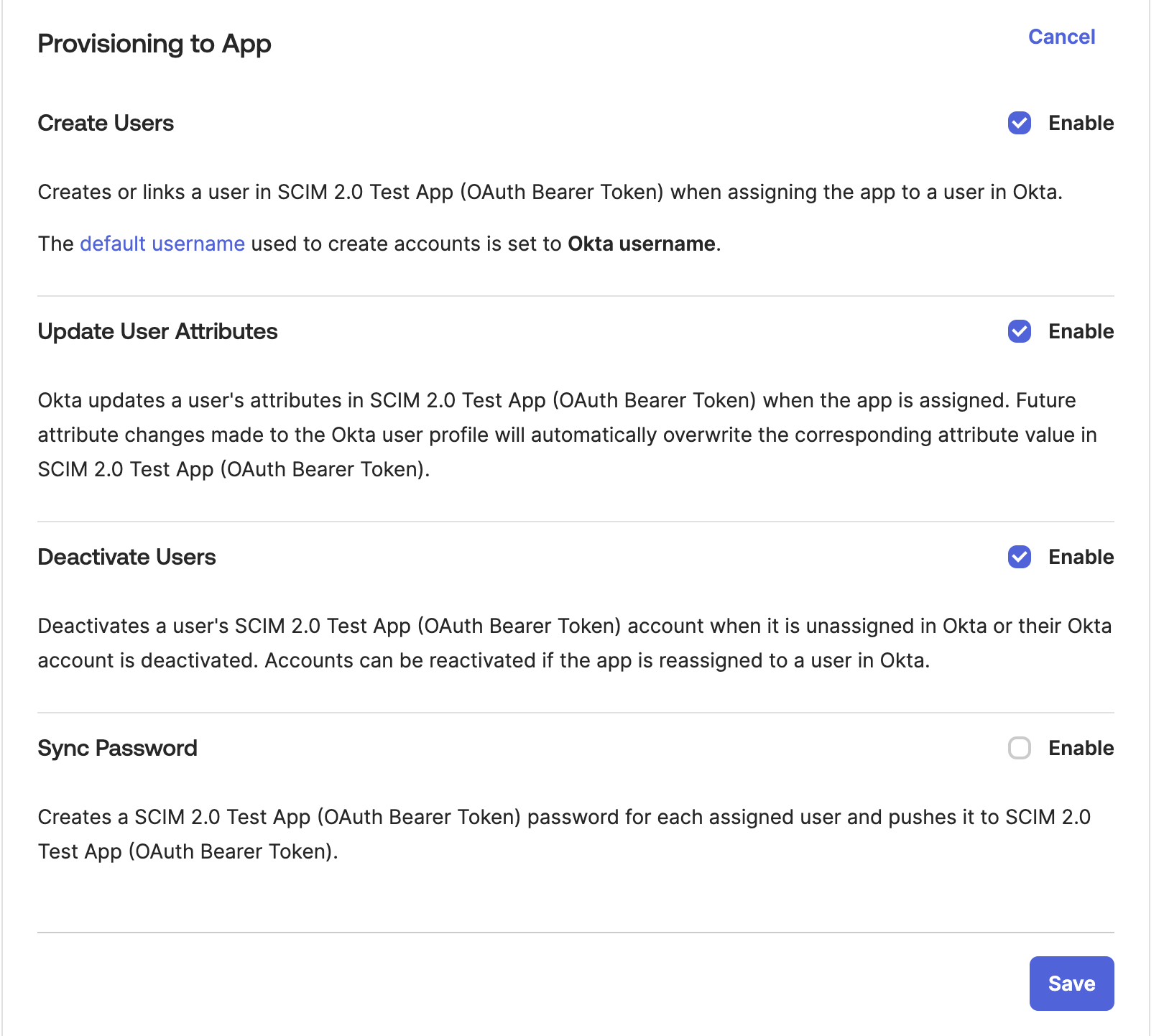 Ensure the users are properly provisioned with these settings.
 -
Click Save to complete the provisioning configuration.
-
To complete your group setup, go to Push Groups and push your Okta groups to dbt platform. This makes the groups available in dbt platform. Then, an admin must assign the required permissions to each group.
You've now configured SCIM for the Okta SSO integration in dbt platform. You can manage user licenses with SCIM to set license type for users as they are provisioned.
SCIM username format
For dbt platform SCIM with Okta, userName must be the email address format. dbt platform uses userName to look up existing users during SCIM sync. If Okta sends another format (such as an Okta internal ID like 00u... or an employee ID), dbt platform cannot match the existing user, and provisioning will fail.
If your Okta configurations map the Username field to a different attribute, set your Okta app config to Email:
- Open the SAML app created for the dbt integration.
- In the Sign on tab, click Edit in the Settings pane.
- Set the Application username format field to Email.
- Click Save.
When you use both SSO and SCIM with Okta, the SAML Application username format must be Email. SCIM requires userName in email address format, and it must be the same value as the email attribute so users match between SSO and provisioning.
SCIM license mapping
To automate seat assignments in Okta for users as they are provisioned, see Manage user licenses with SCIM.
Existing Okta integrations
If you are adding SCIM to an existing Okta integration in dbt (as opposed to setting up SCIM and SSO concurrently for the first time), be aware of the following behavior:
- Users and groups already synced to dbt will become SCIM-managed once you complete the SCIM configuration.
- (Recommended) Import and manage existing dbt groups and users with Okta's Import Groups and Import Users features. Update the groups in your IdP with the same naming convention used for dbt groups. New users, groups, and changes to existing profiles will be automatically imported into dbt.
- Ensure the Import users and profile updates and Import Groups boxes are selected under the Provisioning settings tab in the Okta SCIM configuration.
- Use Import Users to sync all users from dbt, including previously deleted users, if you need to re-provision those users.
- Read more about this feature in the Okta documentation.
To set license type for users as they are provisioned, see Manage user licenses with SCIM.
Was this page helpful?
This site is protected by reCAPTCHA and the Google Privacy Policy and Terms of Service apply.