Developer agent PreviewStarterEnterpriseEnterprise +
The Developer agent is the next evolution of Copilot in the Studio IDE. Describe what you need in natural language to build, refactor, test, and document your project — grounded in lineage, metadata, governance, and the Semantic Layer, with every change auditable.
The Developer agent is in preview as of May 6, 2026 for Starter and Enterprise plans. Enterprise plan customers can contact your account manager for changes. Starter plan customers can contact dbt Labs Support.
The Developer agent is designed to support the full dbt development lifecycle — from initial model creation to testing, documentation, and semantic layer definition. Some examples of what you can do:
- Build or change models using natural-language prompts about the logic you want.
- Generate and validate YAML for tests, documentation, and semantic models from existing models, with less manual boilerplate.
- Make scoped edits (renames, materializations, logic, stricter tests, and so on) while keeping related YAML in sync.
- Explore the DAG, query the Catalog, and use lineage and metadata to guide your development.
- Investigate job and run failures (errors, likely causes, fixes) using the
troubleshooting-dbt-job-errorsskill in dbt Agent Skills.
The agent comes with the following out of the box — no configuration needed! 🎉
- dbt Agent Skills: A curated collection of dbt-recommended guidance and instructions, managed by dbt Labs and always up to date.
- dbt MCP server Product docs toolset: Enables the agent to search and fetch content directly from dbt's official documentation at docs.getdbt.com.
Prerequisites
- A Starter or Enterprise-tiered plan
- A dbt account and Developer seat license.
- A development environment and credentials set up in the Studio IDE.
- Account access to Copilot features.
Availability and considerations
- Where it runs: Supported in the Studio IDE only, all deployment types. Not supported in VS Code or the dbt CLI.
- Engines: Works with dbt Fusion engine and dbt Core.
- Conversations: In the conversation list, open More actions menu (three dots) of the conversation you want to delete, then click Delete to remove one thread. Deleting the open thread clears the panel.
- Sessions: Refreshing the same browser tab keeps your active session. A new tab, or returning after closing the tab, starts empty.
- Chat history: Retained for 90 days only. Chat history isn't supported yet on single-tenant deployments, so save anything important before closing.
- Plan mode: Not supported yet. The agent doesn't show a separate plan before applying changes, however you can use the Ask for approval mode to approve each file.
- New chat: Click Start new Copilot chat (top right of the Copilot panel) to begin a new session.
Using the Developer agent
To use the Developer agent, follow these steps:
- Open your dbt project in the Studio IDE, then click Copilot in the command palette.
- Start a prompt in several ways in the Copilot panel:
- Quick actions: The Studio IDE surfaces quick actions at the top of the panel to help you get started with common tasks.
- Plain text: Type directly into the text field to describe what you want to build or change.
- Model context: Type
@to select a model as context. This scopes the agent's changes to that resource.
- Select the Agent mode button to specify the mode for the Developer agent. Available modes are Ask for approval (default) and Edit files automatically.
- Review the agent's suggestions and approve or reject the changes. You can also use the Start new Copilot chat button to start a new chat session.
- Approve dbt commands when the Developer agent requests to run commands like
dbt compileordbt build. - Repeat the process to build or change more models.
- Commit the changes to your dbt project and open a pull request.
For more details on the Developer agent and how it works, expand the following sections to open additional information.
Panel controls
The Copilot panel contains:
- Quick actions (center): The Studio IDE surfaces quick actions at the top of the panel to help you get started with common tasks, like generating documentation, semantic models, tests, and metrics. When selected, the text field is pre-filled with a prompt for the selected action. These quick actions may evolve over time as new capabilities are added.
- Agent mode button (bottom left): Switch between Ask for approval and Edit files automatically mode. Click the button to change modes.
- Model context (bottom left): Shows the currently open file. Use
@in the text field to reference a different model. Click x to remove the model context. - Text input field (bottom left): Type your prompt in the text field to describe what you want to build or change. Type
@to select a model as context. This scopes the agent's changes to that resource. - Start new Copilot chat (top right): Starts a new chat session.
- Stop or Enter (bottom right): Press Enter to submit your prompt. Press Stop to stop the current session and agent processing. You cannot undo this action.
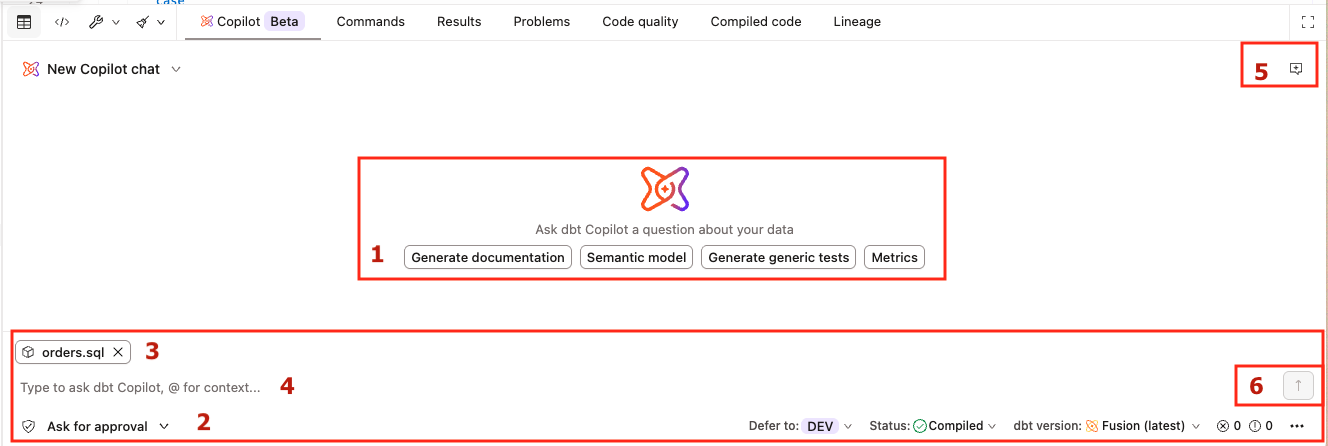 The Copilot panel in the Studio IDE showing quick-action buttons, text input field, and agent mode controls.
Agent modes
The Developer agent operates in two modes:
You can switch between modes at any time by clicking the Agent mode button in the Copilot panel.
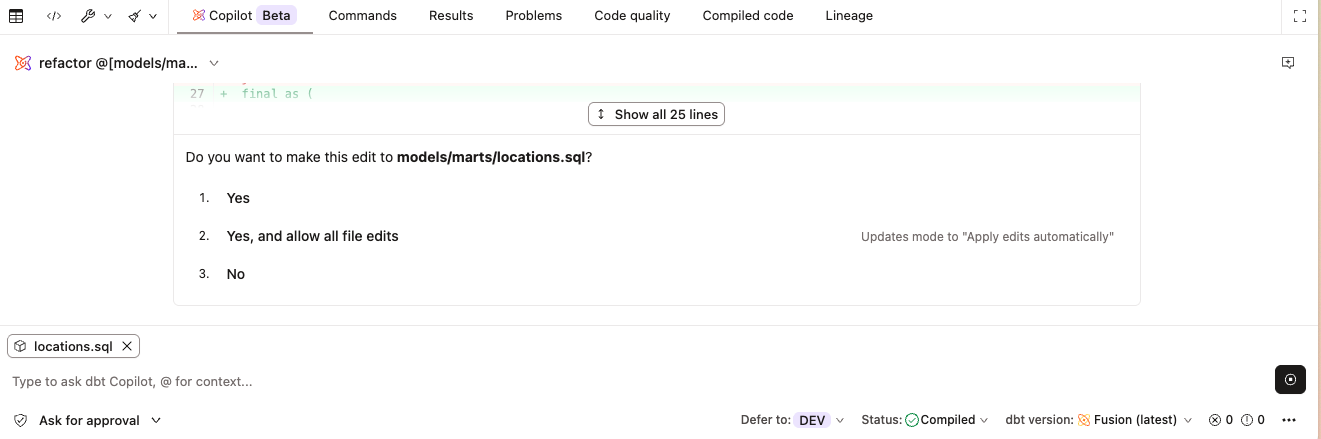 The Developer agent in Ask for approval mode, requesting approval before making file edits.
Reviewing agent suggestions
When the Developer agent proposes code changes, you can review them before they are committed to your project:
- View the diff: The agent displays a diff of the proposed changes. Click Show all X lines to expand and view the full suggestion.
- Line indicators: Added and removed lines are highlighted with line number indicators so you can see exactly what changed.
- Copy or open in editor: Use the options in the top-right corner of the diff view to copy the suggestion or open it directly in the editor.
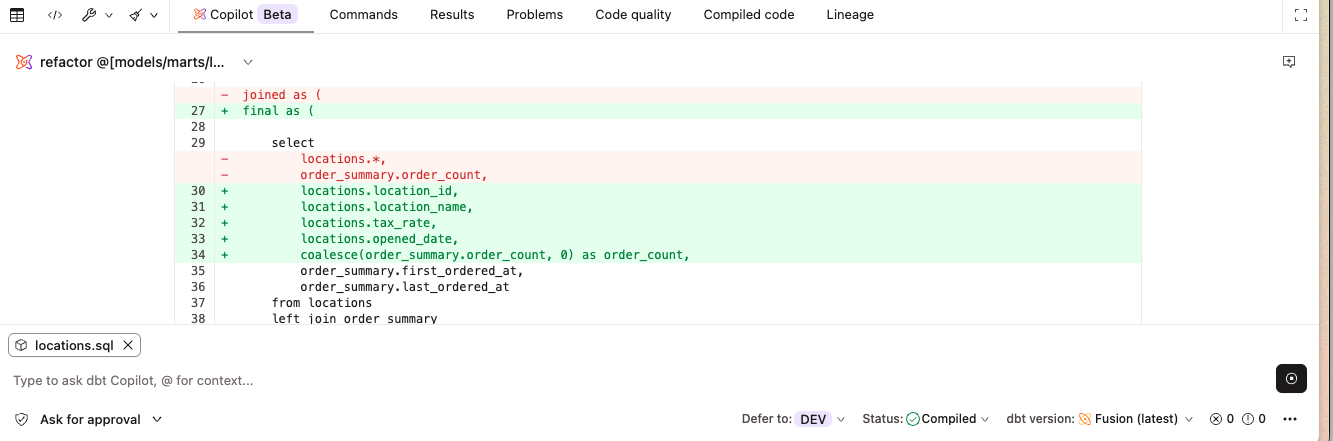 The Developer agent displaying a diff of proposed YAML changes with line indicators and copy/open options.
Granting command permissions
To validate or run models during a session, the agent may request to run dbt commands such as dbt compile or dbt build. You'll be prompted to approve each request before it executes. For example, the agent might request to run:
dbt compile --select model_name
You can select one of the following options:
After you run a command, Copilot adds an icon and Run by Copilot tooltip to the Studio IDE Commands tab results. This helps you distinguish agent-run commands from manually run commands in the run results and logs.
 Commands run by the Developer agent appear in the Studio IDE Commands tab with a Copilot icon and 'Run by Copilot' tooltip.
Bringing your own skills
A skill is a reusable set of instructions that the agent can load to perform a specific workflow, such as applying your team's SQL patterns, modeling standards, or domain-specific logic. Skills help the Developer agent produce more consistent results, reduce repeated prompt writing, and match the agent's generated changes with your team's conventions.
To add custom skills to your project:
-
In Studio IDE, create a skill file at
skills/SKILL_NAME/SKILL.mdin your project. -
Add clear instructions in
SKILL.mdfor what the skill should do and when to use it.Custom skills use the same Agent Skills format as dbt Agent Skills on GitHub. A typical
SKILL.mdincludes:- YAML frontmatter at minimum with
nameanddescription(optional fields allowed). - Markdown body with sections for when to use the skill, workflow steps, and conventions.
- Optional
references/files for extra detail the agent can load when needed.
- YAML frontmatter at minimum with
-
Optionally add supporting sub-files under the same skill folder (for example,
skills/SKILL_NAME/references/example.md) that the agent can read when needed. -
Start a new agent session after adding or changing skills so the agent can pick up the updates.
If a custom skill and a built-in skill use the same name, the custom skill takes precedence.
For a full production-style example, check out dbt's adding-dbt-unit-test skill.
Example folder layout
The following example shows the recommended folder layout:
skills/
  my-team-style/
    SKILL.md
    references/
      naming-conventions.md
Example skill file
If you're new to skills, start with a small SKILL.md like the following, then grow it over time. Let's pretend Santi Corp is a plasticine manufacturer and their data practitioners want to apply their modeling conventions to all models in the project.
---
name: my-team-style
description: Apply Santi Corp's modeling conventions when editing or creating dbt models. Use when the user asks for refactors, new models, or YAML in this project.
---

# My team style

## When to use

Use this skill whenever you are changing SQL or YAML under `models/` and the user did not override these rules.

## Conventions

- Staging models use prefix `stg_` and live in `models/staging/`.
- Facts and dimensions use `fct_` and `dim_` prefixes respectively.
- Document new columns in the same PR as the model change.

## Optional detail

For edge cases, read `references/naming-conventions.md` in this skill folder before proposing renames.
Running a custom skill
To use a custom skill in the Developer agent:
- Prompt the agent with the task and reference the skill by name (for example, "Use
my-team-styleto refactor this model and update related YAML"). - If needed, use
@mentions to point to the skill file or supporting.mdfiles directly. - Review and approve the proposed changes as usual in the Copilot panel.
Some considerations to keep in mind:
- Cross-project or package-style skill distribution isn't natively supported yet. To reuse a skill in another repo, copy the skill files manually.
- Skills are discovered at session start. If a skill is added mid-session, start a new chat.
- If a custom skill and a built-in skill use the same name, the custom skill takes precedence.
Debug job failures
The Developer agent can investigate and troubleshoot dbt job and run failures directly from the Studio IDE. This capability is powered by the troubleshooting-dbt-job-errors dbt Agent Skill, which comes pre-configured with the agent — no setup required.
You can ask the agent questions and issue commands like:
- "What jobs have failed recently?"
- "What is the root cause of the job failure?"
- "How can I fix the recent job failure?"
- "Fix the job failure."
The agent notes when your local project state may differ from the job — for example, if you're on a different branch or have uncommitted changes — so you have full context before acting on any suggested fixes.
Fusion migration workflow
If you have access to Developer agent and Copilot with AI features enabled, you can use the Fusion migration workflow skill. This skill can help you fix compatibility errors directly from the Studio IDE using Copilot — no manual log investigation needed. It classifies every error, applies validated fixes automatically, and surfaces what's blocked.
The Fusion migration workflow is accessible through the Developer agent in the Studio IDE. If you're using VS Code or the dbt CLI, use the autofix tool instead.
- From the job list, click the Review job button for a job with a successful run.
- If you don't see the Review job button, enable the Show Fusion eligibility toggle in the job list.
- In the Fusion eligibility unknown for this job pop-up, click Debug in Studio with Copilot.
- dbt redirects you to the Studio IDE and sets your personal development environment to Fusion.
- Copilot opens and automatically triggers the Fusion migration skill with this prompt:
I need help fixing Fusion compatibility issues in this project. Please investigate and resolve any deprecation warnings or incompatibilities. Please use the migrating-dbt-core-to-fusion skill to guide this. - Review and approve Copilot's permission requests so it can run the commands it needs.
- The Developer agent iteratively runs
dbt compile, reads the results, and applies fixes until it reaches a successful compile or encounters an error it can't resolve. If it gets blocked, it exits cleanly, explains what it could not fix, and creates and links to a markdown file summarizing all changes made. - When the project compiles with no warnings or errors, commit and publish your changes.
- After you merge the changes, wait for the job to run again or run it manually on Fusion.
 The Developer Agent's fusion migration workflow triaging and fixing Fusion compatibility errors in the Studio IDE.
For more on how to prepare your project for Fusion and what to do when you hit compatibility errors, see the Fusion readiness checklist and the Upgrade to Fusion guides.
Writing effective prompts
Good prompts include the scope (which models or area of the project), the intent (the transformation or business logic you want), and any constraints (naming conventions, materialization, tests). Here are a few examples:
| Loading table... |
For detailed guidance, patterns, and more examples across SQL, documentation, tests, and semantic models, see the Prompt cookbook.
Related docs
- dbt Agents overview
- Fusion readiness checklist
- Develop with dbt Copilot
- Prompt cookbook
- Semantic models
- About dbt AI and intelligence
Was this page helpful?
This site is protected by reCAPTCHA and the Google Privacy Policy and Terms of Service apply.