Configuring AWS PrivateLink for single-tenant ingress Beta
This feature is available on the following dbt Enterprise tiers:
- Enterprise+
- Virtual Private
To learn more about these tiers, contact us at sales@getdbt.com.
Inbound AWS PrivateLink lets your services reach a single-tenant dbt platform instance privately over your access URL, without traffic traversing the public internet. You create an interface VPC endpoint in your AWS account that connects to the PrivateLink endpoint service dbt publishes in front of your instance.
Ingress PrivateLink is available only for single-tenant deployments; multi-tenant ingress isn't currently supported (refer to the AWS private connectivity matrix).
dbt Labs provisions it for your instance. To scope it and receive your endpoint service name, contact your dbt Labs account team or Solutions Architect. If you don't have a single-tenant deployment yet, contact our sales team.
Roles
This guide uses two roles, matching the AWS PrivateLink model:
- Provider: (dbt) Hosts the VPC endpoint service in front of your single-tenant instance.
- Customer: (You) Creates the interface VPC endpoint in your own AWS account.
Access URL naming convention
Single-tenant ingress uses the domain convention <customer_name>.private.dbt.com for your access URL. When you enable private DNS on the endpoint (see Step 3), AWS provisions a private hosted zone containing a wildcard record for this domain. The wildcard covers the product subdomains served by your instance, such as the semantic layer and metadata (Discovery) endpoints, so a single endpoint serves all of them.
Private DNS on the endpoint only works once dbt (the provider) has verified the custom domain on the endpoint service. Confirm with your dbt Labs account team or Solutions Architect that your instance is ready for ingress PrivateLink before you begin.
Prerequisites
- A single-tenant dbt platform instance with ingress PrivateLink enabled by dbt.
- The VPC endpoint service name for your instance, provided by dbt (for example,
com.amazonaws.vpce.us-east-1.vpce-svc-xxxxxxxxxxxxxxxxx). - Your access URL for the instance (
<customer_name>.private.dbt.com). - An AWS VPC in the same Region as the endpoint service, with DNS hostnames and DNS resolution enabled (both are required for the private DNS name feature).
- Permissions in your AWS account to create interface VPC endpoints and manage the associated security group.
Create the interface VPC endpoint
Step 1: Start creating the endpoint
- In the AWS console, go to VPC → Endpoints and select Create endpoint.
- (Optional) Add a Name tag to identify the endpoint.
- Under Type, select Endpoint services that use NLBs and GWLBs.
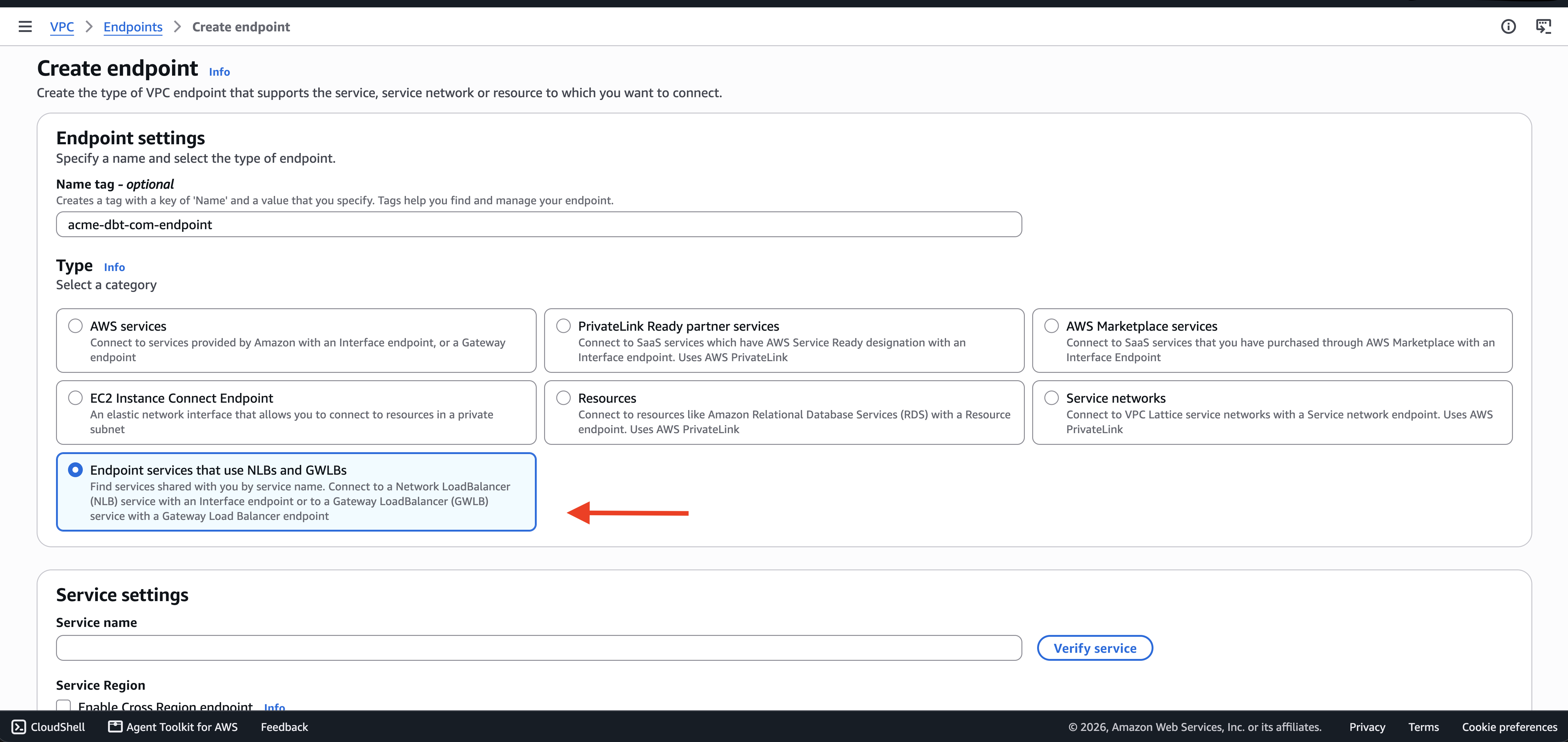 Create endpoint page with 'Endpoint services that use NLBs and GWLBs' selected as the type
Step 2: Enter and verify the service name
- In Service name, paste the endpoint service name that dbt provided.
- Leave Enable Cross Region endpoint unchecked — the endpoint is created in the same Region as the service.
- Select Verify service and confirm you see Service name verified.
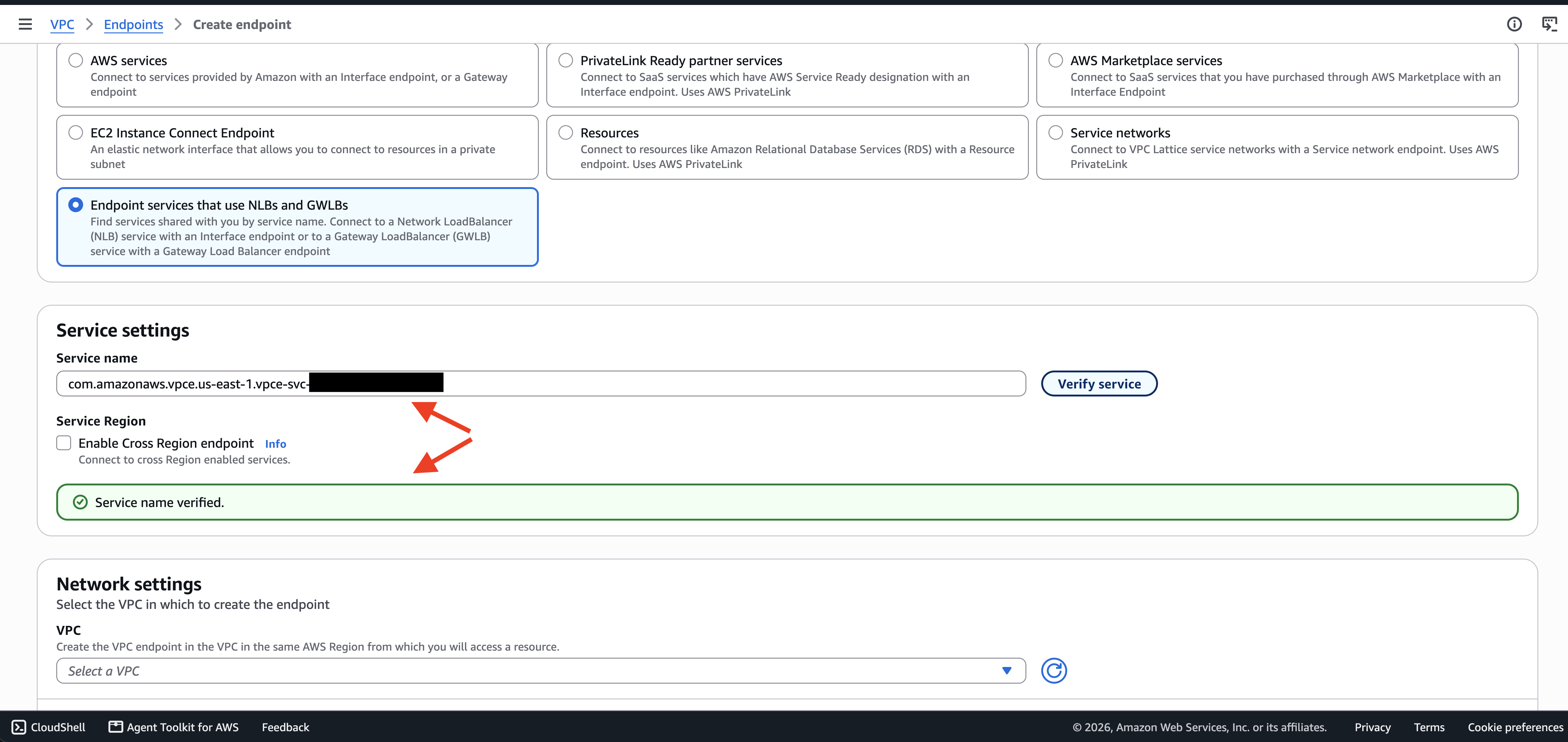 Service name entered and verified, with Cross Region endpoint left disabled
Step 3: Select your VPC and enable private DNS
- Under Network settings, select the VPC where your workloads run.
- Expand Additional settings and select Enable private DNS name.
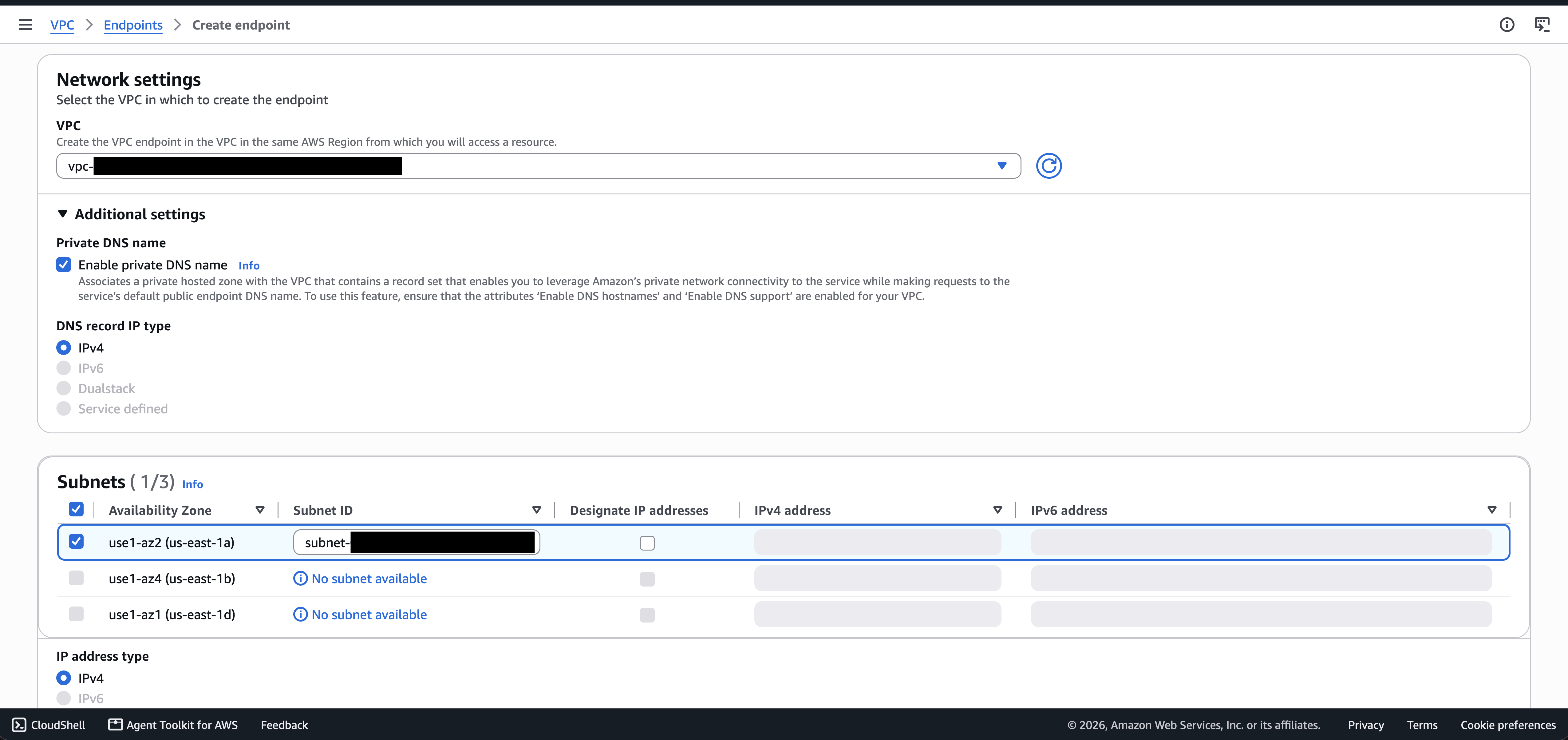 Enable private DNS name selected under Additional settings
Selecting Enable private DNS name automatically provisions the private hosted zone and record set for your <customer_name>.private.dbt.com access URL. This is the standard, recommended configuration. Configuring hostnames manually instead can lead to TLS errors and other issues, so keep this box checked.
Step 4: Choose subnets and a security group
- Select the subnets for the endpoint. A single subnet is enough for testing; use subnets across multiple Availability Zones for production.
- Choose a security group that allows inbound traffic on port 443 from your workloads.
- Select Create endpoint.
Step 5: Wait for the endpoint to become available
The endpoint is created in a Pending state while dbt accepts the connection, then moves to Available. Once available, the Private DNS names enabled field shows Yes and the Private DNS names list includes your *.<customer_name>.private.dbt.com record.
 Endpoint details page showing status Available, private DNS names enabled, and the private.dbt.com record
Step 6: (Optional) Configure DNS for on-premises access
Workloads inside the associated VPC resolve the access URL automatically. Clients connecting from on-premises networks over AWS VPN or AWS Direct Connect need additional DNS configuration so they resolve the access URL to the endpoint's private IPs.
To forward DNS queries from your on-premises network into the VPC, refer to the AWS documentation on Route 53 Resolver inbound endpoints.
If all your users access the instance from inside the VPC, you can skip this step.
Validate connectivity
From an instance inside the selected VPC, confirm that:
- Your access URL resolves to a private IP address from the endpoint (not a public address).
- The TLS handshake succeeds and the returned certificate matches your access URL.
The endpoint selects its certificate by TLS Server Name Indication (SNI). Clients must send your access URL as the SNI. Some PrivateLink clients and libraries do not set SNI by default — without it, the endpoint returns a default certificate that will not match your access URL and the handshake fails.
Was this page helpful?
This site is protected by reCAPTCHA and the Google Privacy Policy and Terms of Service apply.